Monday, October 6, 2008

Impressions of The Bastard Operator From Hell

In the past few days I have been doing something to which I am not accustomed: reading. In the words of the late 20th century philosopher John Foreman “I don’t want to read the book… I’ll watch the movie." But in this instance, it’s not a book to which I am referring. It’s an ongoing saga that has been around since the days of Usenet and has been updated on a basis that is more frequent than this blog. I am talking about The Bastard Operator From Hell (BOFH).

This story is about a cynical network admin and his trusty psychopathic sidekick Pimply Faced Youth (PFY) and how they endeavor to have as little to do with the users (lusers) as possible. A more in-depth explanation is provided in the Wikipedia link above.

I have found reading these texts to be rather inspiring in my job if taken out of the malevolent and cynical context because many of the situations aren't very far from reality. Here is what I’ve learned:

· The network needs to be protected at all costs from its greatest threat: the users.
In my experience, this is 100% correct. Newbies who don’t know what they are doing can wreak havoc on a system that otherwise will run smoothly. Stuff like Bittorrent, file server raiding and general snooping around are big causes of network latency and downtime for the network on which I work. I combat this by blocking all ports but 8080 on the routers, employing strict security parameters on the file server and a rather restrictive Group Policy in Active Directory.

· A user with a little bit of knowledge of networking systems is a dangerous thing.
Where I work, we call this “knowing just enough to be dangerous”. I was like that at one time. Every good systems admin has. But a user who thinks he knows what he is talking about when he is really full of it cannot be reasoned with when they inquire for help with something that they messed up. I, like the BOFH, call manuals that are outside of the users' scope "The forbidden texts" for a reason.

· Many password entry errors are the result of CAPS LOCK.
True… So very true. To paraphrase Lore Sjoberg, “I just want a keyboard without a caps lock key. It doesn’t serve any purpose except as a tool to annoy. PEOPLE YELL ONLINE ALL THE TIME WHETHER ON PURPOSE OR BY ACCIDENT.” In the case of passwords, some users just don’t know to check whether or not the little light on their keyboard is lit-up.

· Give the user exactly what they ask for.
…and nothing more. In the case of the BOFH and PFY, this means that when a user complains that they need more space in their home directory, they open a terminal, grep the user name, and proceed to ” rm rf * all of the files in the users’ home directories. “Amazing! I have cavernous free space! But where did my files go?!” In my case, when a user asks for something to be done to the Active Directory Group Policy affecting their account (and everyone else’s), they better have a damn good reason for it. If a user pisses me off too much, I do exactly what they ask for and pawn off the blame when someone comes up to me pissed that their screen has only the ability to have 800x600 resolution.

· Two Words “Dummy Mode”.
Dummy mode is what happens when someone is given too much information regarding a topic that, in most cases, is too technical for them to understand. And in the case of the BOFH and the PFY, Dummy Mode is the state of mind in which users can be manipulated into doing anything because they don’t know what they are really doing. I run into this all of the time. I have to explain and re-explain until my original explanation is distilled down to something a Kindergartener can understand – barely resembling the original statement in the least. Even then the glazed-over deer-meets-headlights look on their faces informs me that I may have learned Greek and it was coming out instead of English. If you don’t want to know, don’t ask.

If you are interested in reading The Bastard Operator From Hell, visit Simon Travaglia’s page for the 1992-1999 posts and The Register for all posts 2000-present. I hope you glean as much from it as I did.

Thursday, July 17, 2008

New iPod

I’ve been a late adopter of many things. I didn’t have a DVD player until 2003. I didn’t have a CD burner until 2005. I didn’t even have a personal music player (iPod) until last year.

Having an iPod changed the way I thought about my music. Instead of compiling anywhere from 10-20 tracks on a CD, I had my entire music collection at my beacon call.

There were also many perquisites that were totally unnecessary, but at the same time, value-added. For example: the ability to play videos, play games, view pictures and play video podcasts. I even transcribed the entire New Testament of the Bible to work with the Notes widget (available to anyone who requests it).

Sadly, recently, my 5th gen iPod grew legs and walked out of my life. I was sad. I retraced my steps and rummaged through everything in my house, office and car and still no 5th gen iPod Video.

But where some see an utter loss, I saw an opportunity. The small 30GB of storage wasn’t enough to hold my rather large collection of music. I had to pick and choose what I wanted to sync in iTunes. It was a bit of a hassle. I had to do with out some of the extras in order to accommodate the majority of my music collection.

After it was deemed a vain endeavor to find my lost iPod, I got on eBay and had a look at what was available. I really couldn’t see spending $150 for what I had before. That would be insane. The 5th Gen iPod Videos were notorious for having a screen that would scratch with a fingernail. Getting a used one would be asking for disappointment.

Then I found an 80GB iPod Classic for only $25 more. Hmmm interesting. It came with the USB cable, new earbuds and the satisfaction of knowing that it had the new version of the iPod firmware. *bling*

So I forked-over $175 out of the $300 that was bestowed upon me by George W. (God bless America) and in 3 days, I had my “new” iPod. It was in really good condition for being used.

I know that this model of iPod has been out for a while now. But like I said, I’m late to catch-on to things.

I’m really impressed with all of the eyecandy. The podcasts now have their iTunes static art next to the podcast name. Cover flow was a feature that I was amused by for about a half hour and then I was over it. The random artwork in the root directory is entertaining but really not a plus.

I’ll give it to Apple on this one. They really improved on the amount of whitespace that is on the screen. Also, in the week since getting it, I haven’t seen my battery level drop from full. And another plus is the time it takes to return from standby. I hated having to wait for the white apple to go away to play my music on the old model. It’s as if they took a 5th gen iPod and took away all of the little things that annoyed the hell out of me.

It does everything I want it to. I have my whole music and photo collections on it along with a movie and a ton of podcasts and it isn't anywhere near full. In all, I give my new iPod an 8 out of 10.

Friday, March 14, 2008

DNS Hell

Recently, I bought a second domain name. I already owned kendallsofcanton.com and I wanted to also run my new domain (HackersAre.us) on the same web server. I fumbled –around for about 2 days on the internets, damning them at every step of the way for being totally useless, trying to get both of these sites hosted on the same server.

I thought the problem was my Apache webserver. I tried many iterations of code that I thought might work in order to get both of the sites running on virtual hosts. In the end, it turned-out to be the Ahost pointer wasn’t set to my IP address in the DNS server over at GoDaddy. Why they wouldn’t remind me about that instead of sending me ads to buy crap hosting plans that I don’t need I have no clue.

I’m totally pissed how over-complicated the GoDaddy UI is. It pisses me off how many irrelevant ads are on there and how when I log into my account, their site takes me to their store instead of my domain admin section. If I wanted to buy something, I would ask for it. Also, the options in the domain admin section that don’t really do anything (subdomains). What the hell is up with that? At one point in this whole ordeal, I was so pissed that I actually broke my keyboard and hurt my hand simultaneousy. It's definitely good that I always have like 20 spares on hand. [/rant]

For those of you wondering how I was able to get the two sites up and running after the little GoDaddy row, here’s what my %apache config folder%/extra/vhosts.conf file looks like for Apache 2.2.

NameVirtualHost *:80
<VirtualHost *:80>
ServerAdmin jfekendall@gmail.com
DocumentRoot "S:/dotcom/kendall"
ServerName kendallsofcanton.com
ServerAlias *.kendallsofcanton.com
</VirtualHost>

<VirtualHost *:80>
ServerAdmin jfekendall@gmail.com
DocumentRoot "S:/dotcom/hackersareus"
ServerName hackersare.us
ServerAlias *.hackersare.us
</VirtualHost>

An added benefit to this is that the sites can't be pinged, yet the content can be viewed. ***Spooky*** DDoS attack tolerant!

Now if I can only figure out how to get actual subdomains working, I would be in business. That’s more crap to sort-out with GoDaddy and their aweful DNS administration tools. If I was a man of means, I wouldn’t be bitching like this. I would have my own DNS server and a big enough pipe to drive a truck through.

Friday, February 15, 2008

Adventures in the world of Linux!

It's been about a month since my last update. It's really been a month since anything interesting happened with me that involved technology.

About a week ago, I installed Windows XP Service Pack 3 [snore] on my laptop thinking that it might do something for it. I mean, SP3 is out in the Release Candidate stage of production. What could go wrong? Right?

After installing, it seemed to be a pretty even-keel boring ride with few changes that normal users would never see or notice. But that's where the placid waters ended and the maelstrom began.

After the first full shutdown/reboot sequence, I got the BSOD on a consistent basis. I knew it wasn't my hard drive. That's new. The only real thing that changed was the damn service pack. I considered re-installing Windows for about two seconds and then thought about Linux.

I have been trying to get a decent running installation of Gentoo Linux going for about the past two years. It's not the easiest broad to get along with, but it is lightweight and flexible.

Long story short: I spent a week in Gentoo CLI Hell and ended-up with a rather useless Operating System. Today I settled for a distribution of Linux that is built on Gentoo but is far easier to set-up called Sabayon. After-all, it is easier to uninstall crap than it is to install crap with Portage. An added plus was that everything, including my wireless card, worked right out of the box. IV'E NEVER HAD WIRELESS LINUX!!!

One of the reasons I wanted to go with Linux over XP was that XP was getting rather boring to look at and it was very limited. I've been wanting to make a Mac clone on a PC ever since I first saw OSX all those many years ago. The vigilance in people so dedicated to make that dream a reality in Linux has come a long way.

I spent all day today working with a program called Baghira [Panther in Hindi. I thought it was clever too]. I finally got my laptop's desktop looking similar to the desktop on my G3. The only difference is that the G3 royally pisses me off every time I use it and the laptop actually has a bit more horsepower to run all of the *bling*. Yes, I even managed to get a fully-functional Dock with the parabolic zooming and the works [ksmoothdock]. That's the sweetest part about it.

I even went so far as to rig-up some shell scripts to change the title bar in Konqueror to "Finder". It got the Finder icon too. I know the picture doesn't look 100% like OSX; but you're just jealous that your Finder doesn't have tabbed browsing :-P.

I almost forgot how fun Linux was until this little experience. Hopefully someone reading this (at least the first few parts) will not screw-around with a Gentoo installation and instead get Sabayon. If you would like to try Sabayon with no risk, just download a CD image from their website and boot from it. It won't touch your data unless you ask it to. No risk!

Sunday, January 13, 2008

Wiimote Whiteboard

I have built my first piece of computer hardware. It’s not something that took days and days of planning and engineering work either. This piece of hardware essentially functions as a mouse with a left-click button only. **Echos in my mind, “Damn it Jim! I’m a businessman! Not an engineer!”**

I was trolling the comments on Slashdot yesterday for something interesting and found a link to Johnny Lee’s project page. I watched the video for the interactive whiteboard and was totally blown-away!

The project connected a Nintendo Wii Remote to a computer via Bluetooth. The IR camera in the Wiimote sensed an infrared LED at the end of a pen and its relative position to the screen.

The most difficult part about this project was building the light pen. It consists of one infrared LED, a momentary switch, an N cell battery and some wires. I thought an EXPO dry-erase marker shell would be perfect for the task of containing it all. It has a form factor that everyone who has ever used a whiteboard has gotten accustomed to.

Through several instances of trial and error, I finally got the light pen working with the Wiimote. Since the LED emits light in the infrared spectrum, I had no way of really knowing if it was working or not. That made troubleshooting very difficult. And with everything being soldered together in such a small package, troubleshooting was also very time-consuming.

After I got it working, I turned my old notebook into a touch screen. I was able to interact with the screen more naturally than with a mouse. I could play solitaire as fast as I could think.

“How is this something beyond just a toy?”, you might be asking yourself. The school where I am currently employed is thinking about spending somewhere in the neighborhood of $25,000 of my tax money on Smartboards from 3M. I just want to provide them with a solution that would be less expensive and annoying than the 3M solution.

For those of you who want to see this thing in action, here’s the video. Sorry for the crappy WMV quality. Had to shrink it somehow. Enjoy!


Sunday, December 30, 2007

Vista Performance Enchancements

Many in the I.T. industry have shied-away from Windows Vista due to the fact that it can run like a dog on systems with seemingly state-of-the-art hardware. I installed Vista on my IBM Thinkcentre A50 about two months ago. It ran Windows XP fine with its 1GB of RAM, 3.0GHz Pentium 4 CPU and NVIDIA GeForce graphics card. I just installed Vista out of curiosity.

It ran slowly compared to XP. Not only that, the intense graphics made it such that I could put a Pop Tart in between my CPU and graphics card and have it nicely toasted all the way through in about 5 minutes. This was a real problem that caused my computer to shutdown thanks to the thermal overload. The entire time the computer was on my variable speed processor fan was screaming like a jet engine.

Something had to be done. In the meantime, I installed an 80mm ball bearing fan in the case to help with heat removal from the case and I performed a hillbilly hardware hack [image left] with my graphics card and a PIII cooling fan. That was just so I could use the computer for longer than ten minutes.


The Good Stuff

Now down to how I was able to pull-off the seemingly impossible feat of getting Vista to run smoothly.

Theme

In order to get the graphics to function normally and not overheat my graphics card and over-extend my RAM, I set the theme to “Windows Classic”. The Aero and Vista themes are very graphics-intensive and not really value-added for getting stuff done on your computer.

How to set the theme:

Right click on the desktop -> select “Personalize” -> Select “Theme” -> from the dropdown menu, select “Windows Classic” [image right] -> Click OK to everything

Now your desktop and windows look boring. But who said PCs were supposed to look exciting?

UAC

Another thing I disabled that was a huge annoyance was UAC. After disabling it, I noticed a pickup in performance as an unrealized side-effect. It seems that User Account Control evaluates everything that you try to do before it will pop-up the annoying “Cancel or Allow” box.

To disable UAC:

Click on the Start Menu -> Select Control Panel -> Select “User Accounts” -> At the bottom of the list of options, there should be a link that says “Turn User Account Control on or off”. Click on it. -> Uncheck the only checkbox on the screen and click OK

Your computer will require a reboot after this. Your computer will also be less secure according to Microsoft. But now you have the same protection you would have in Windows XP.

Startup Programs

This procedure I run on every computer regardless of operating system. It is always a best practice to have next to nothing starting up with Windows. Many of the things that start with Windows you don’t need to start and run in the background anyway.

To edit startup programs:

Click on the Start Menu -> Click on Run* -> type msconfig and hit Enter ->Select the Startup tab -> from here it is up to your digression to check/uncheck whatever you want or don’t want to start up with Windows. I personally have nothing starting with Windows. It makes the startup process so much smoother. After you are done, click OK and restart. After the restart, you may have a notification that “Some program is being blocked from starting”. Click on that bubble and let the program run. Uncheck the box that appears on the dialog box and click on OK. You’re done.

*If you don’t see the Run option, Right click on the start menu and select “Properties” then “Customize”. Scroll down until you see the “Run command” checkbox and check it. Click OK and resume what you were doing.

Shutting-down Runaway Processes

The “Looking for a Solution to Your Problem” box appearing every time you end an errant program can get annoying and consume way too much of your precious time. When you click on the X on the top of a window, it should close. This procedure should disable the thing that runs in the background every time you have a runaway program.

Disabling Error Reporting and all crap associated with it:

Click on the Start Menu -> Select “Control Panel” -> Select “System and Maintenance” -> Under “Problem Reports and Solutions” you should see an option to “Choose how to check for solutions”. Click on it. After the Window appears, click on “Advanced Settings”. Then select the “Off” radio button.[Image Left] Then click “OK” for every window until you get back to the Control Panel. Restart your computer so the changes can take effect.

The words "problem" and "solution" in the same sentence might make you feel all warm and fuzzy on the inside; but really those problem reports rarely have anything in them that is of value to the average computer user. Even I have problems understanding the cryptic error messages that come out of that utility. It is genuinely worthless.

Post-op Evaluation

Before, my processor would run at 40% at idle. After, my processor now idles at around 10%. Granted, that is 300MHz being used when I'm doing absolutely nothing. But that is definitely way better than 1.2GHz being used when I'm doing absolutely nothing.

My computer is also running cooler now that all of that strain has been relieved. My CPU fan now quiet as it is supposed to be.

One or a few of these modifications can have a huge impact on the performance of your Windows Vista computer. If you perform any, let me know how it went. I'd love to hear it.

Sunday, December 23, 2007

2007: an OS Odyssey

I have been on a sort of I.T. geek nostalgic binge over the past few days. I guess you could say that this is a continuation of my previous blog.

Having found all of that old boot media in my spindle upon spindle of CDs, I acted on the temptation to install all of those archaic operating systems. In order to truly gauge where we are in technology, sometimes we have to look back to see how bad things really did suck from a user’s perspective.

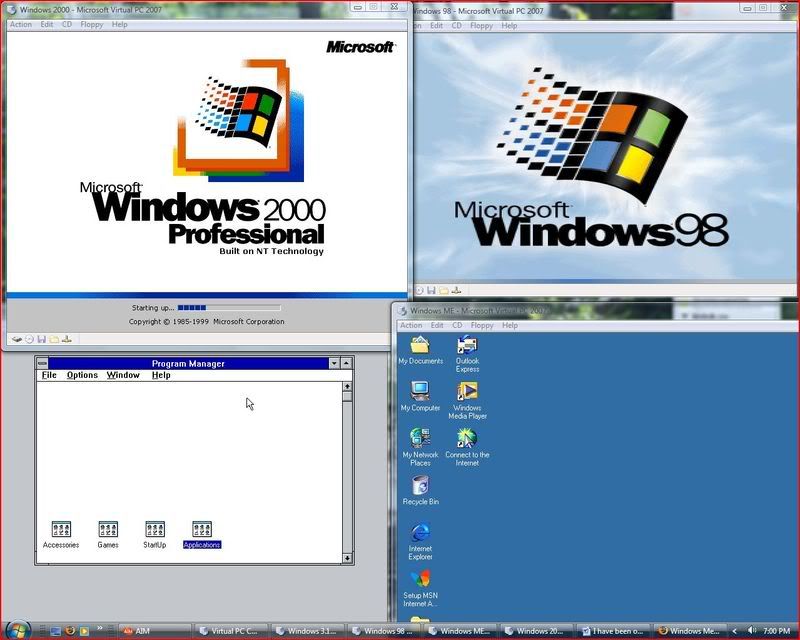
I am using Microsoft Virtual PC 2007 in order to install all of these operating systems without messing with any physical hardware. Call me constructively lazy, but the software optimizes the “hardware” so I don’t have to. I can just have a little fun.

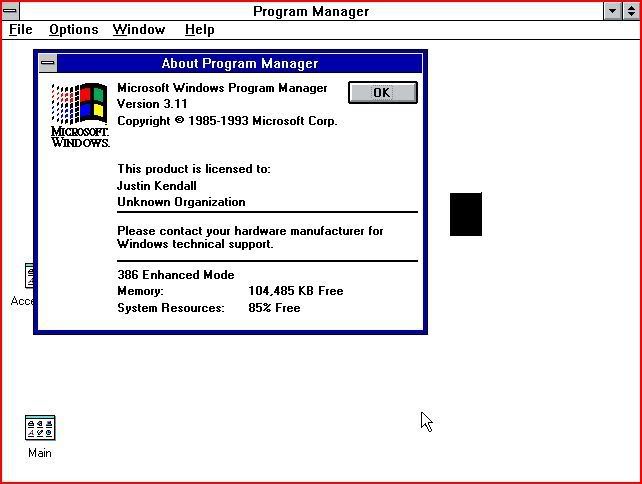
Windows 3.11

Yes... I said Windows 3.11. All of us who are over 20 years old have used it. We just choose not to talk about it.

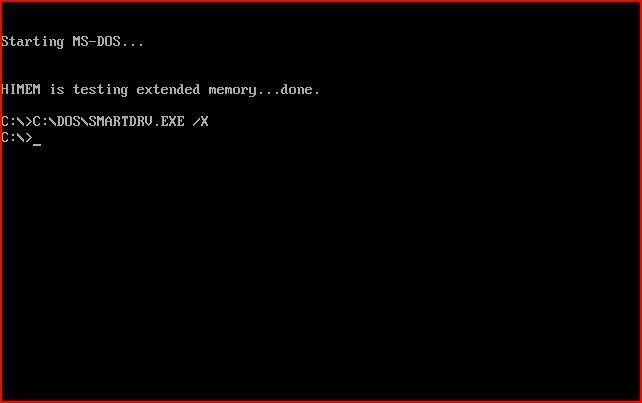
II am DOS... No one can hear your screams!nstallation of this bad boy was a real challenge. I went through three attempts before I finally had the light bulb kick on that told me that I needed to install DOS first. So I installed DOS 6.22 and then ran the setup again. Installed like clockwork.

I had to set the VM options such that it thought it was running with a 16 bit 386 computer! Just to add to the insanity, I also gave it 128MB of RAM!

Nowhere else in the iterations of Windows is it more apparent that DOS-based Windows is just an application than with version 3.11. Windows 3.11 all the way up to Windows ME was just a graphical fState-of-the-art for 1993!ront-end to DOS. Windows itself wasn’t really an operating system until NT rolled-out with an integrated Kernel.

I haven’t used Windows 3.11 in decades. Even though it only took about 45 seconds booting from an ISO, it was a real pain in the ass to install. The graphics and features that came with this version of Windows were just plain awful. It is unbelievable that people actually voluntarily paid money for this at one point in time. Thank God Windows 95 came out. (I never thought I would say that!)

I can see that not much changed in the way of Solitaire from Windows 3.11 to XP.

Windows 95

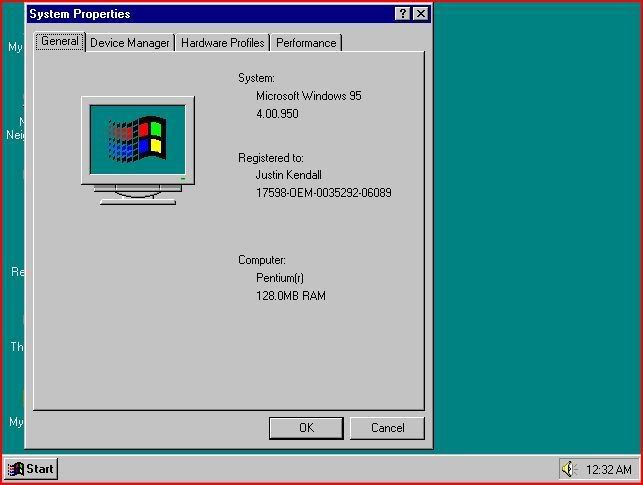
Windows 95 was a lot easier to install than I had remembered. Of course, installing Windows 95 on a machine with a 3.0 GHz Pentium 4 with Hyper Threading and 128MB of DDR allocated to it is hardly authentic for the era. Back then, seeing a computer with a 200 MHz Pentium processor with 32MB of EDO memory was commonplace. Those are now used as doorstops, boat anchors and filler in landfills.

Installation took about ten minutes. Even with the advanced set-up it was a breeze. Getting the thing to go to the internet was difficult, if not damn-near impossible! I can’t imagine an average computer user out there manually configuring their DNS settings and Default Gateway. That is unfathomable even by today’s standards! I never did get that working. It really wasn’t worth my time.

Windows 98 (SE)

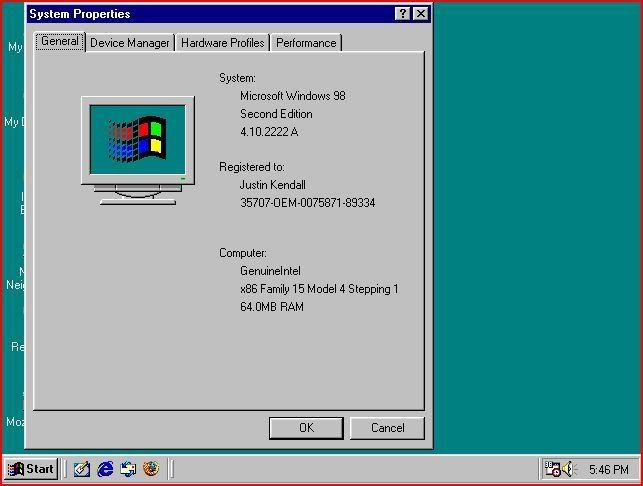
This is a version of Windows that most people didn’t see the point in giving-up until Windows XP became commonplace. I was working with Win 98 on a regular basis up until about 2003. Still today, it is usable on slower computers for people who may not have the money for a faster computer or an OS upgrade.

Installation of this version of Windows was as mind-numbing as I remembered it to be. 35 minutes means 35 minutes. I even jacked-up the RAM for the VM to 256MB and that still had no effect.

I did, however, enjoy the fact that the setup program automatically formatted the “hard drive” so I didn’t have to tool around in DOS with fdisk as I had to do for both Win 3.11 and Win 95.

Windows 98 was a big improvement over Windows 95 in many respects. But to the average user, only the little aesthetic things changed. It was much more stable than its predecessor in that it didn’t rewrite its own registry like a virus. It supported more memory. It also supported larger hard drives and partitions with the “new” FAT32 file system. This FS is still commonly used to transfer files from a Linux installation to a Windows installation in a dual boot environment due to the fact that many operating systems still support FAT32.

Another huge improvement over Win 95 was the “Automatically Detect IP/DNS Settings” feature. Getting online was sooooo much easier.

If Windows XP wasn’t as successful as it was, I think I would still be working with Windows 98.

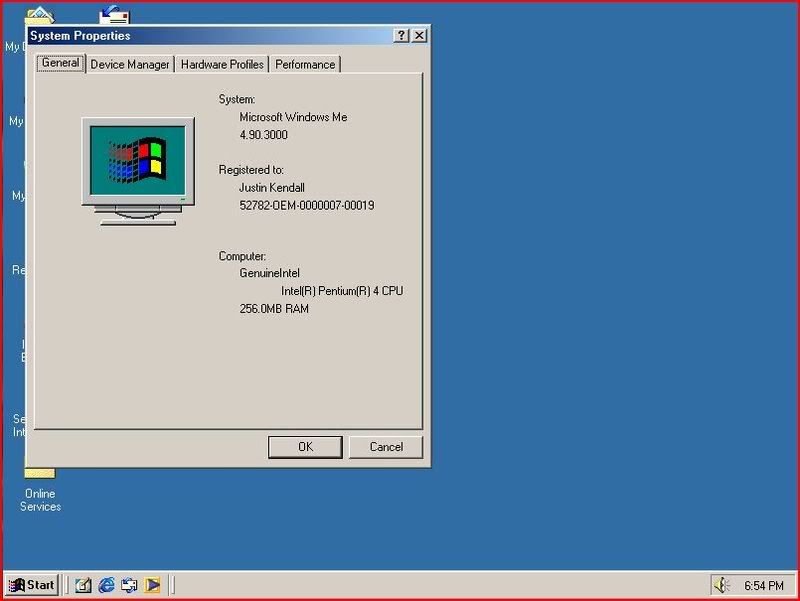
Windows MEWarning: looking at this picture causes brain damage!

This version of Windows is another one that we don’t talk about… EVER! But I am anyway. Microsoft made this aberration of an operating system in 1999 and then stopped supporting it six months later. It was the worst train wreck of an OS that Microsoft has ever had the nerve to release. On the plus side, this OS has made me more money than any other with people wanting to upgrade to something more stable… like Windows 98!

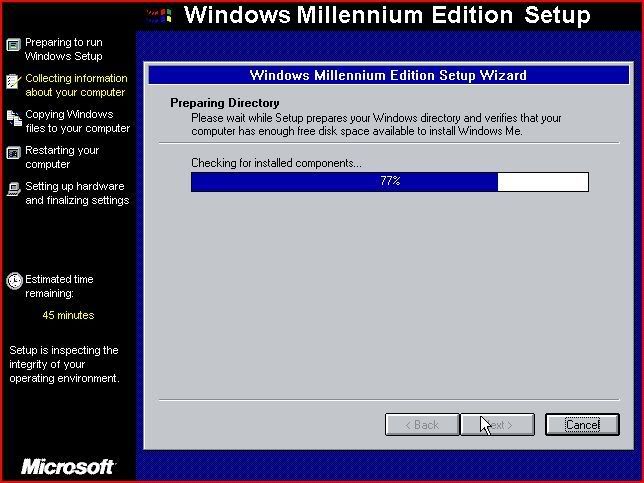
The installation process reminded me of Windows 95. Only with Windows 95, the boot disk had proper disk preparation utilities. The boot disk didn’t have a proper way to format c:\. I had to use the Win 98 boot disk for that! After that nightmare, I had to laugh as I read the “Sit back and relax while Windows ME is installed” and “This is the best version of Windows yet”! I have to wonder: should I relax?

I immediately started having problems after the first restart. It’s a wonder Microsoft put their name on such a product.

Windows 2000

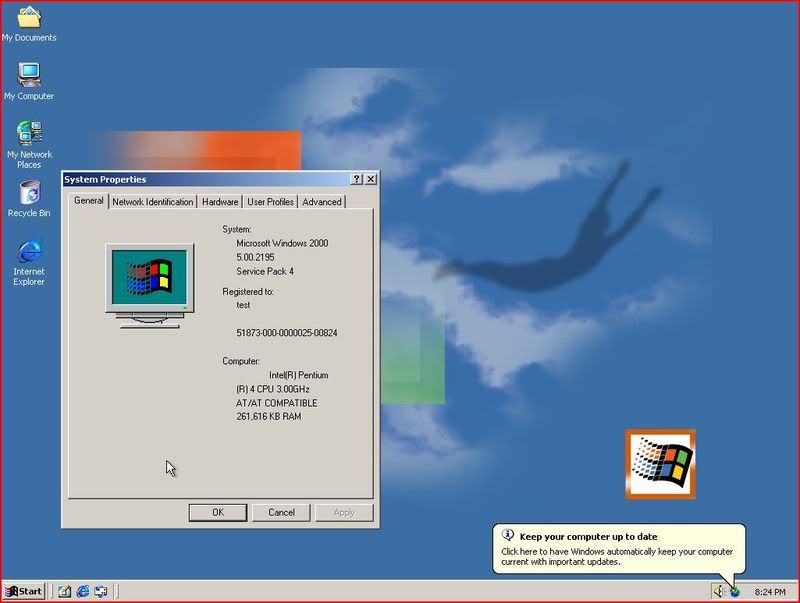
This version of Windows wasn’t used by very many people outside of the business world. It is still used today by many corporations due to the fact that it is a solid, secure and scalable operating system. Windows 2000 Professional was the first version of Windows to use the NT Kernel in a desktop environment. Everything using the NT Kernel before that was predominantly server-based.

I used Windows 2000 for a number of years at home and at work. I really enjoyed the fact that it didn’t randomly crash as much as Windows 95 and 98 did. Also, when I was poor and couldn’t afford to buy a copy of Windows XP, all of the programs that would work on Windows XP would work with Windows 2000! Windows 2000 was NT version 5.0 and XP was version 5.1. There is not much of a difference really. Windows XP is nothing more than Windows 2000 with some user-friendly bells and whistles throw-in.

Having installed it on Virtual PC, it is still as endearing to me today as it was six years ago.

Conclusion

Microsoft has progressed in its approach to user-friendliness and IT guy friendliness with the Windows installation process and Windows desktops. As much as the Mac guys like to poke-fun at PCs for being more Business-centered, I can see that they have shifted computers from being just something that is used for work to something that can also be used for fun. This is exhibited in XP and, depending on the version, Vista.

In a way Microsoft has also regressed and then came-back in security. Windows 95 through 2000 at least gave users the option of having a password right after installation. XP didn’t offer this feature but it did return with Windows Vista. Windows 3.11 doesn't really count. But with the addition of Active Directory, Service Pack Releases, anti-viral and other security applications, security has improved for the business and home users.

Having done this, I'm wondering what it is going to be like when I do this again in twenty years. Oh my God! How did we ever live back in those days with Windows XP and Vista?!